View a file’s history
The Revision History can be accessed from the Editor Menu.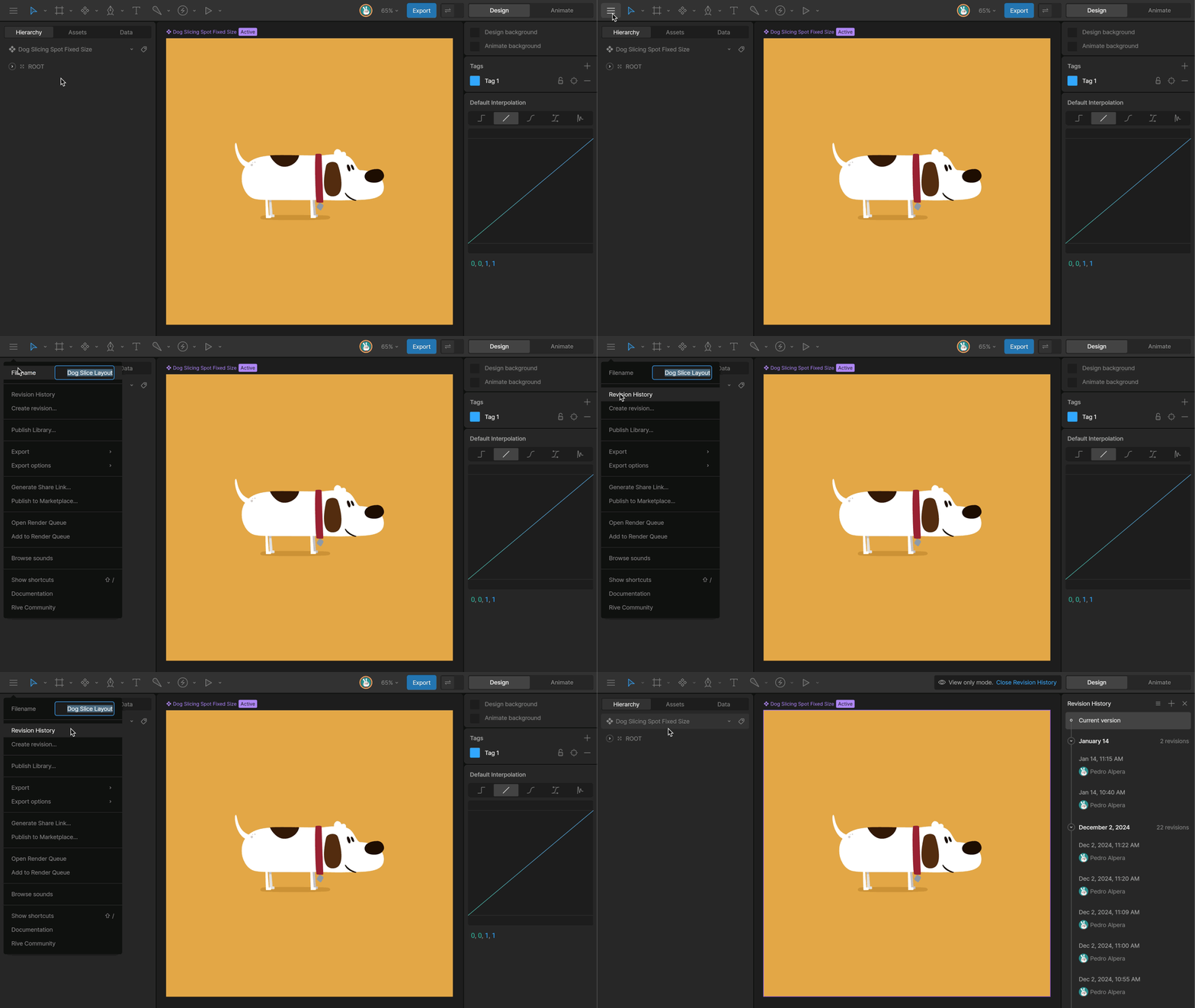
Restore a revision
Select a revision to preview it and press the Edit Current Revision button. This copies the selected revision and creates a new entry at the top of the list. This guarantees that even restoring revisions is non-destructive, and you can always go back to the previous version of the file.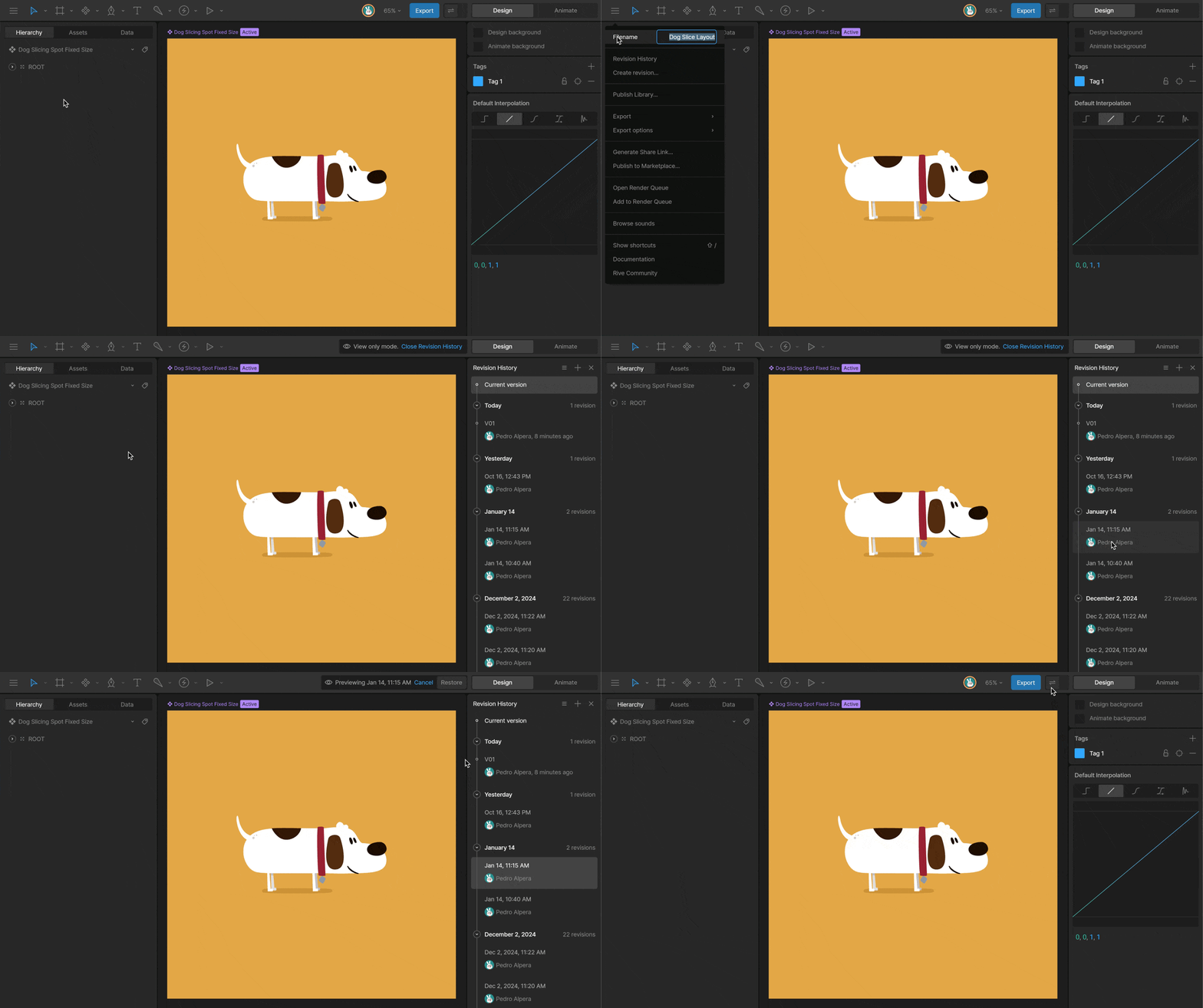
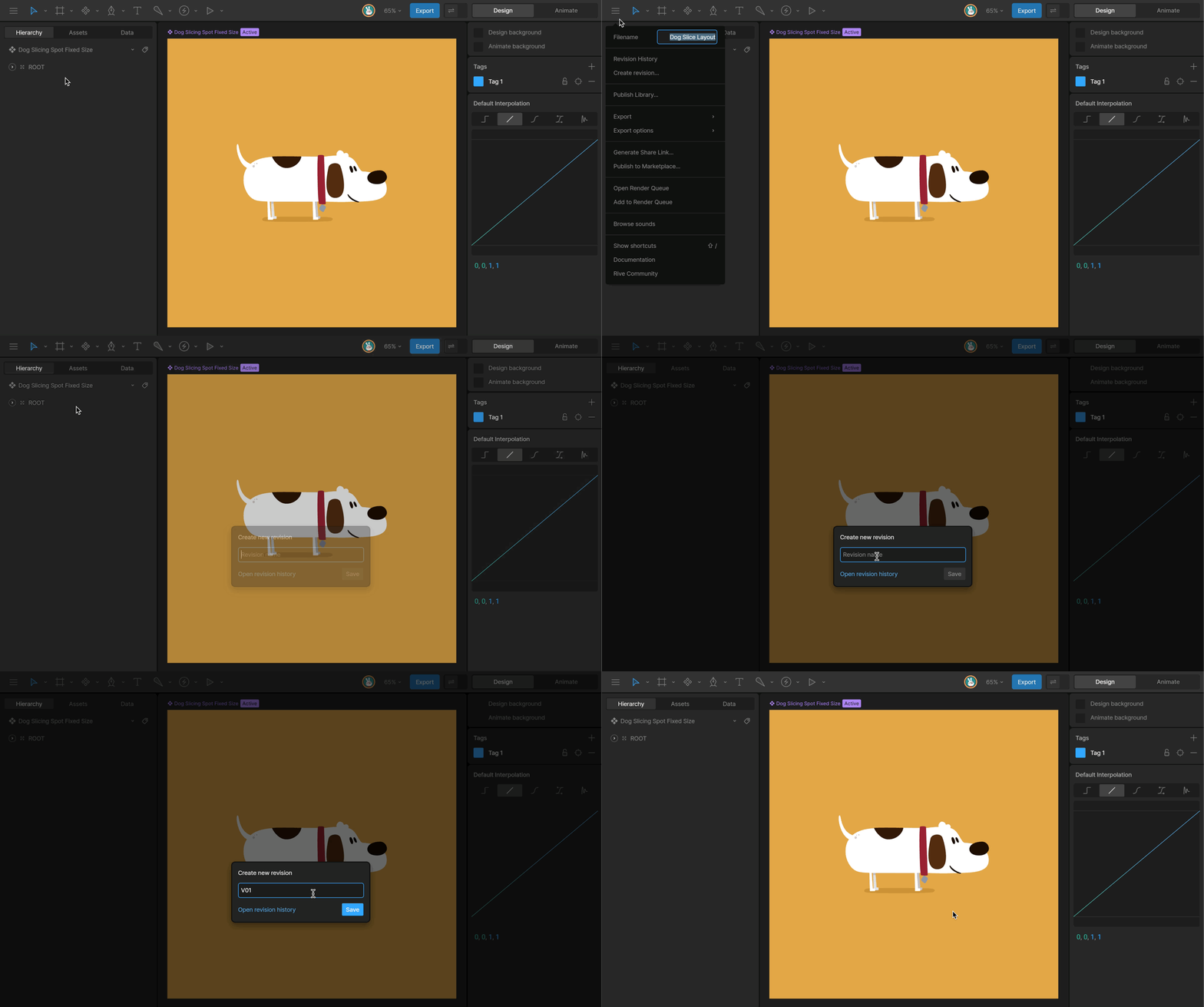
Save a Revision
From the Editor Menu, select the Create a Revision button. You’ll then be prompted to name the revision. Once the revision is created, you can restore that revision using the steps above.